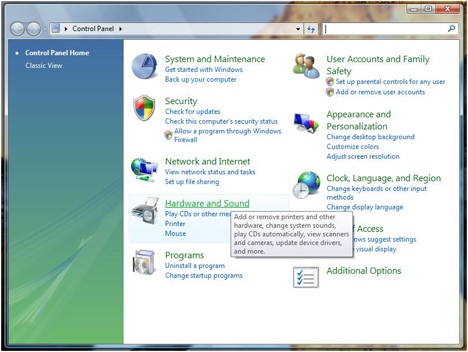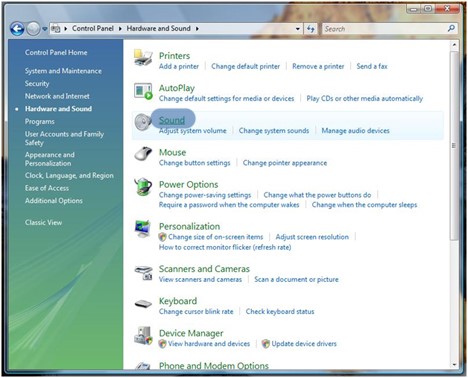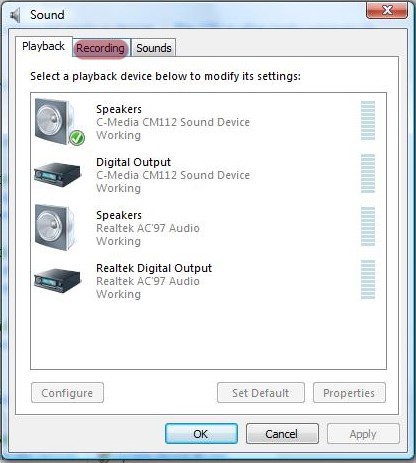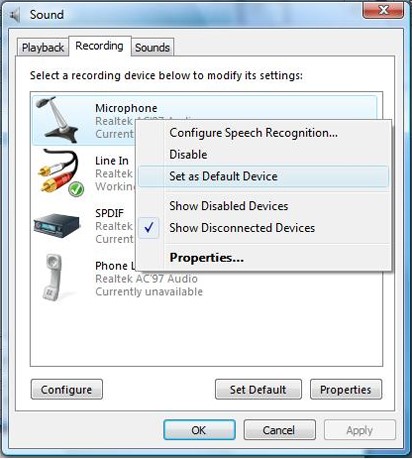
When first time connect the
mini pc (XBMC with Openelec pre-installed) to TV by HDMI, you should select the
correct HDMI device if it didn’t have any sound.
The following pictures to
teach how to set sound on XBMC System:
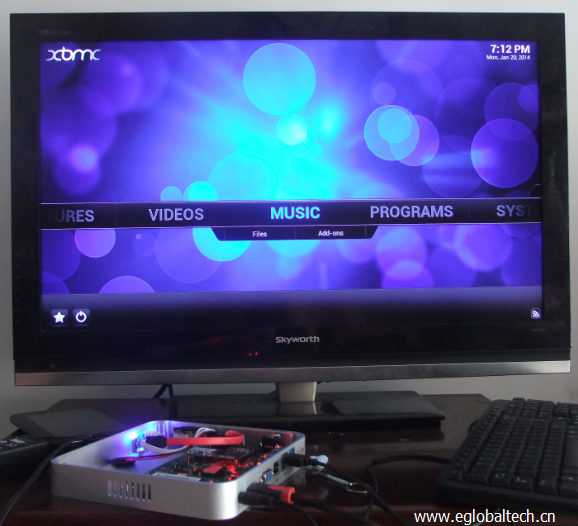
Step 1: open the Mini HTPC
computer and go to its homepage as this picture:
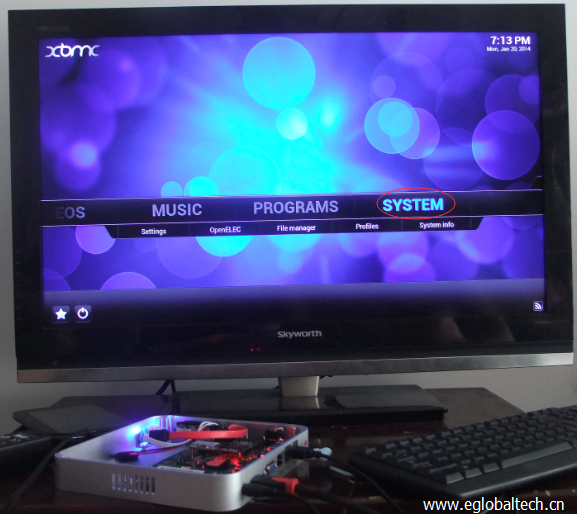
Step 2. Click “System “
button and go into system setting
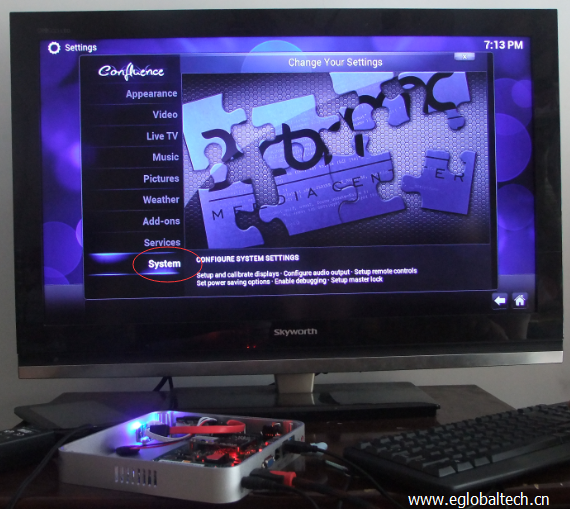
Step 3. Click “system”
button
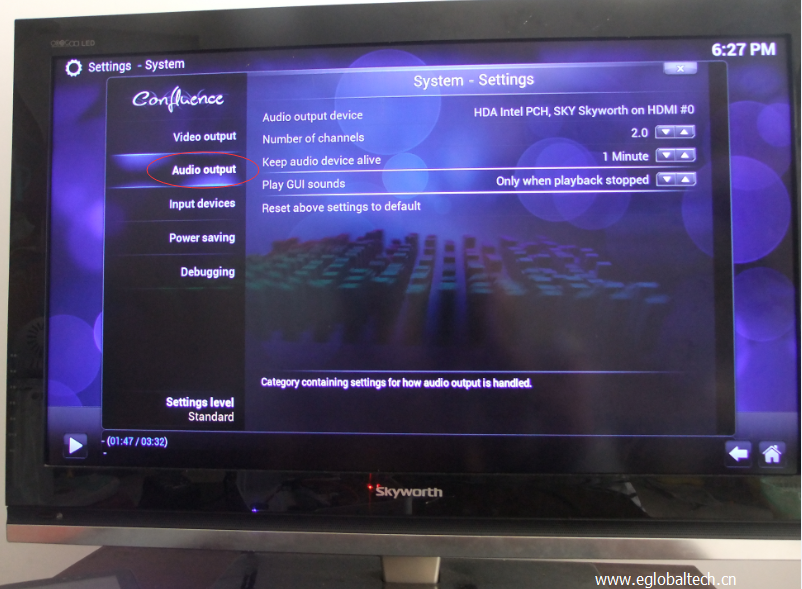
Step 4.Click “Audio Output”
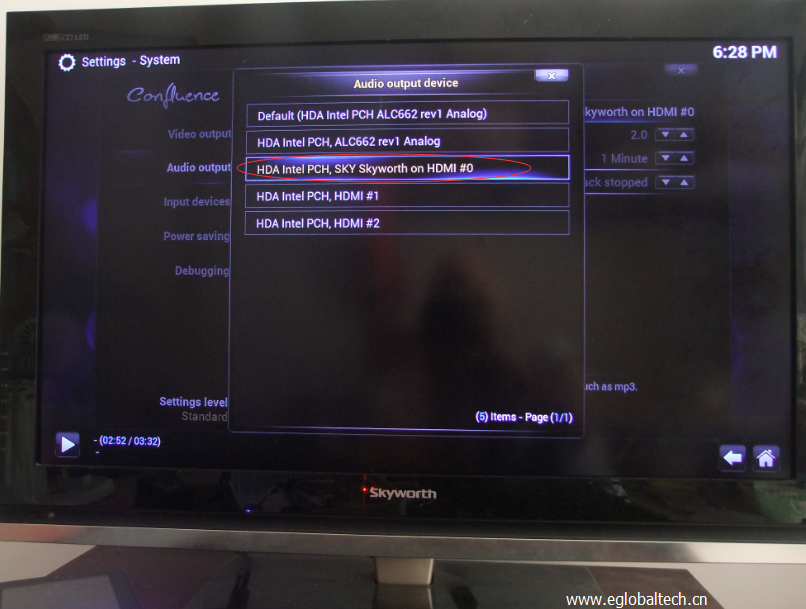
Step 5. Select the right
audio output device from the list shows there:
After
set the Mini PC to “Stand by” mode, I cannot wake it up directly by
touch keyboard or mouse, no matter long press the power switch or short press
the power switch, the mini pc will restart directly instead of wake up, does
you mini pc have this problem? And how to solve it.
To wake up the computer
directly via mouse or keyboard, you should not close your hard disk when the
computer goes to “stand by” mode, go to Power Options and set the
hard disk never turn off will be ok. Operate step by step as per the following
picture:
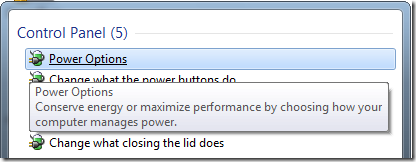
If you are using Win7 OS: First, click on the battery icon and go to “Power
Options”, you can also find “Power Options” from “Control Panel”.
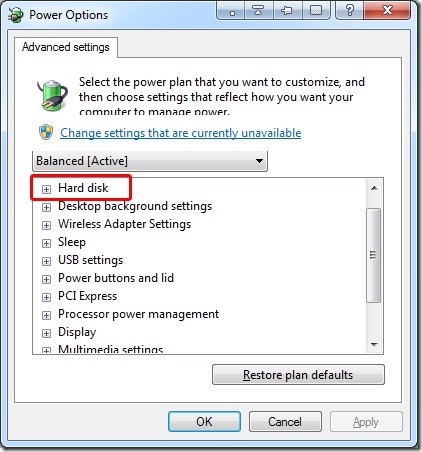
Secondly, click the > Change advanced power settings link in the
bottom left.
Hard disk: Set it never turn
off the hard disk in sleep mode.
If you are running XP: Open the Control Panel and switch to Classic View (if not
already selected), Select Power Options and adjust the settings in the power
scheme, select never turn off hard disks,choose ok to save your changes.
Some customers ask: The
system is installed on Eglobal mini pc computers. But there’s only one partition.
I don’t want to reinstall the system to re-partition. Is it possible to create
another partition?
This might be a problem that troubles many users. Generally, some third party
software can provide such features. However, now Windows 7 enables you to make
some certain degree of adjustments towards current partition sizes.
Let’s check the How-to:
Preparation
An essential
requirement of this operation is that your file system must be NTFS. FAT32 file
system doesn’t work.
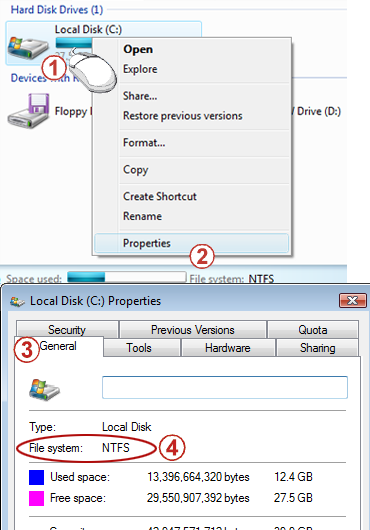
Right click the drive -> Property ->
on the General tab
-> File
System will display your file system.
If it is FAT32
system, it can be converted to NTFS.(Alert:
Converting to NTFS will bring some trouble. For example, if there are two
systems installed on the computer, and one of them is an earlier system like
Windows 98 or Windows ME, then the older system will not be able to recognize
NTFS’s drive letter.)
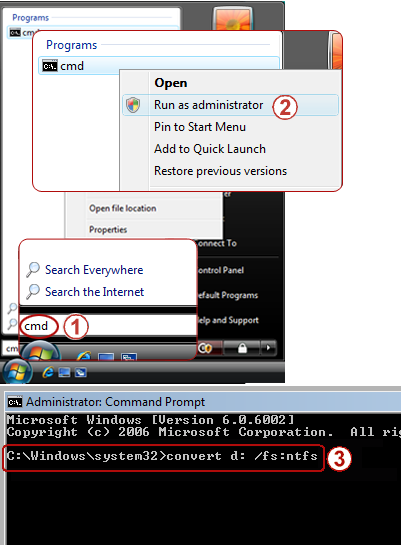
Start -> In Start Search, type cmd, -> and right click cmd in the result list at the top – >Click Run as administrator. If you see a message saying Windows needs your permission to continue, don’t be surprised. Just click continue to confirm.
Type the following command, and press Enter to run it (x represents your drive letter, and it should be replaced with you specific drive letter). convert x: /fs:ntfs
3.Wait for a few minutes, and don’t close the window until you see the confirm message.
To
create a partition or volume (the two terms are often used interchangeably) on
a hard disk, you must be logged in as an administrator, and there must be
either unallocated disk space or free space within an extended partition on the
hard disk.
If there is no unallocated disk space, you can create some by shrinking an existing partition, deleting a partition, or by using a third-party partitioning program.
Open Computer Management by selecting
the Start button. The select Control Panel > System
and Security > Administrative Tools, and then
double-click Computer Management.
In the left pane, under Storage,
select Disk Management.
Right-click an unallocated region on your hard
disk, and then select New Simple Volume.
In the New Simple Volume Wizard,
select Next.
Enter the size of the volume you want to
create in megabytes (MB) or accept the maximum default size, and then
select Next.
Accept the default drive letter or choose a
different drive letter to identify the partition, and then select Next.
In the Format Partition dialog
box, do one of the following:
If you
don’t want to format the volume right now, select Do not format this
volume, and then select Next.
To format
the volume with the default settings, select Next.
Review your choices, and then select Finish.
Notes: When you create new partitions on a basic disk, the first three will be formatted as primary partitions. Beginning with the fourth, each one will be configured as a logical drive within an extended partition.
Warning: Formatting a volume will destroy any data on the partition. Be sure to back up any data you want to save before you begin.
Open Computer Management by selecting
the Start button. The select Control Panel > System
and Security > Administrative Tools, and then
double-click Computer Management.
In the left pane, under Storage,
select Disk Management.
Right-click the volume that you want to
format, and then select Format.
To format the volume with the default
settings, in the Format dialog box, select OK, and
then select OK again.
Notes
Notes: You cannot format a disk or partition that is currently in use, including the partition that contains Windows. The Perform a quick format option will create a new file table, but will not fully overwrite or erase the volume. A quick format is much faster than a normal format, which fully erases any existing data on the volume.
Eglobal
mini pc can stand up by desk bracket but also can be mounted back of monitor by
VESA bracket we supply. When you fix the computer back of monitor, it is inconvenient
for you to press the On/Off Switch button each time, so it would be good if
Eglobal mini pc could start automatically when connecting to the mains power.
Here
let’s see the BIOS setting for your reference(different models of Eglobal Mini
PC have different BIOS interface):
Step 1: Press On/Off Switch on the mini pc and then keep press “Esc” on the keyboard until goes into BIOS; Or Press “ F11 ” after booting, select “ Enter Setup ” into BIOS interface as the picture shown:
2. Select “ Chipset ” and Press “ Enter ” into “PCH-IO Configuration” .
3. Select “ Restore AC Power Loss ” and setup “ Power on ”.
4. Press “ F10 ” and Select “ Yes ” to save the setting and re-start the machine. Now you can test the function “Auto-Power-On”.
Eglobal fanless mini pc using aluminum alloy case to help CPU heat releasing, so even it is fanless, it won’t be very hot, normally around 36 centigrade degree around the mini pc. Our mini PC’s normal operating temperature is around 50 °C -80 °C, and the maximum can’t exceed 100 °C. This is real testing from one of our customers, tested model: V2-C1037U and 5257E
When normal web browsing,
office work and online chatting, temperature surround the CPU part alloy case
from 36°C to 39°C; When the CPU load maintained at 60% ~ 60%, temperature
surround the CPU part alloy case from 40°C to 43°C, when touching won’t feel
thorny hot;
Testing summary: this fanless mini computer is quiet with no noise, the thick aluminum alloy case is good for heat dissipation, very suitable for using in living room and bedroom at home.
Suggestion: Let the mini computer stand by the plastic holder we supply freely or mounted back of monitor if the package include VESA Bracket you bought.
The following is our mini pc
5257U cpu temperature in different environment.
5257U RAM TEST
Temperature under free
Temperature under busy
Max Temperature
A customer who bought a miniPC from our company was very enthusiastic to help us pass back a video of the temperature of the CPU display of our products after playing various games. From the video we can see that the customer played. After several different games, the temperature displayed by our minipc is still within a normal range of use: https://youtu.be/IoPUH39oeNo
Then users buy barebone pc
must to use its own memory, storage and wireless module to DIY the computer,
and install operating system to make it a full ready to go computer. Here is
the videos to add ram, storage and wireless card to EGLOBAL barebone computer:
1) https://youtu.be/tyf12_XIFg8 : Installing the WiFi RF cables, you shall use the WiFi washer and WiFi screws to fix the two WiFi antennas.
2) https://youtu.be/PO3F9W68klU : Installing the WiFi module, RAM and Storage on the motherboard. Here is our model V2-C1037U picture guide, others can refer to this guide directly:
The mini computer support 1pc
2.5″ HDD and 1pc Msata SSD together.
Step 1, open the mini itx
alloy case, find the SATA and mSATA port on the computer motherboard as below:
Step 2. Add 2.5 inch SATA
HDD or SSD and its power cable
Step 3. Input mSATA SSD, use one screw to fix it (one 1)
Step 4. Plug the WiFi module
into Mini PCI-E slot, use the screw inside the bag to fix it.
After fix the antenna,
external antennas just fix to the screws, like picture here:
Step 5. Use 4 screws to fix
the 2.5 inch SATA HDD or SSD onto the computer bottom case, and then fix the
mini computer ally case, now its over and you will find SATA and mSATA placed
as shows in below picture:
Finally, check if your mini pc is working properly.
Drivers are an essential element on your system.
If you don’t have them properly installed of if they’re outdated, you’re more
likely to suffer continuous computer crashes. If you lost your drivers on your
mini pc, what should you do? How do you reinstall the drivers on your mini pc.
There are some ways to help you with your mini pc.
Here are these driver analysis and backup tools for your selection:
Double Driver – Analyzes your system and creates a list with all the drivers currently installed. You can also create a backup copy of selected drivers.
Driver Magician Lite – A simple tool to backup your currently installed drivers. Restoration only works in the paid version though.
DriverMax – A powerful tool to backup and restore drivers with a
very user-friendly interface, simple enough for beginners.
DriverView – The easiest, fastest way to obtain a list with all
the drivers installed on your system.
RadarSync Free Edition – Find out if the drivers on your system need to be
updated. You’ll need to upgrade to the paid version though if you want to
download the updated drivers.
Driver
Checker – keeps all the drivers on your Windows PC up to
date and backed up, so you don’t have problems with compatibility and devices.
My Drivers –
Detects, backups and restores all drivers on your system
Driver Genius –
Super fast program that backups all your drivers